Showing posts with label Windows. Show all posts

Tuesday, 4 December 2018

What’s the Windows Insider program?


Image source: Insider.Windows.com 
Consider it a beta project, a home to some 10 million Windows fans, professionals, and enthusiasts who want to be part of building the future of Windows 10.  Windows Insider is an open software testing program by Microsoft that lets users who own a valid Windows 10 or Windows Server 2016 license to register for pre-release builds of the operating system, which were formerly available only to software developers.

Image source: Pixabay.com 

The program was launched for the technically able ones who want to test out new developer features on pre-release software and builds.  This is done to collect low-level diagnostics feedback that will help identify, probe, mitigate, and enhance the OS, in direct coordination with Microsoft Engineers in a properly structured communication channel.


Windows Insider features three levels or so-called “rings”: Fast, Slow, and Release Preview rings.  What needs to be noted is that since it’s a beta program, a build that gets released can sometimes spell trouble.  Your PC may become less stable, and the program can require a lot of bandwidth given that a new build is usually released once a week.


At any rate, many are keen on becoming a part of the program since it offers the privilege of testing new features first, or before they officially roll out to the public.  It's part of a large-scale initiative to shape the next version of Windows, where feedback about bugs, suggestions, or personal ideas are welcome and might even be implemented by Microsoft.  Finally, it fosters a sense of community among like-minded – or Windows-minded – individuals. 

James P. DeVellis is an IT consultant. These days he is working for a tech company and gets to test new programs and apps as part of his job. Learn more on this page.

Thursday, 15 June 2017

How To Back Up Your Computer Files Before It’s Too Late

In today’s digital world, almost everything we do, we do in front of the screen. So, there’s no such thing too many backups.  If you can make a backup of your backup, do it.  Fortunately, operating systems today provide easy ways to make a backup.  Below are steps on how you can do a backup if you’re using a Mac or a Windows PC.  (Note that for both systems, you’ll need a dedicated external hard drive to perform the task.)

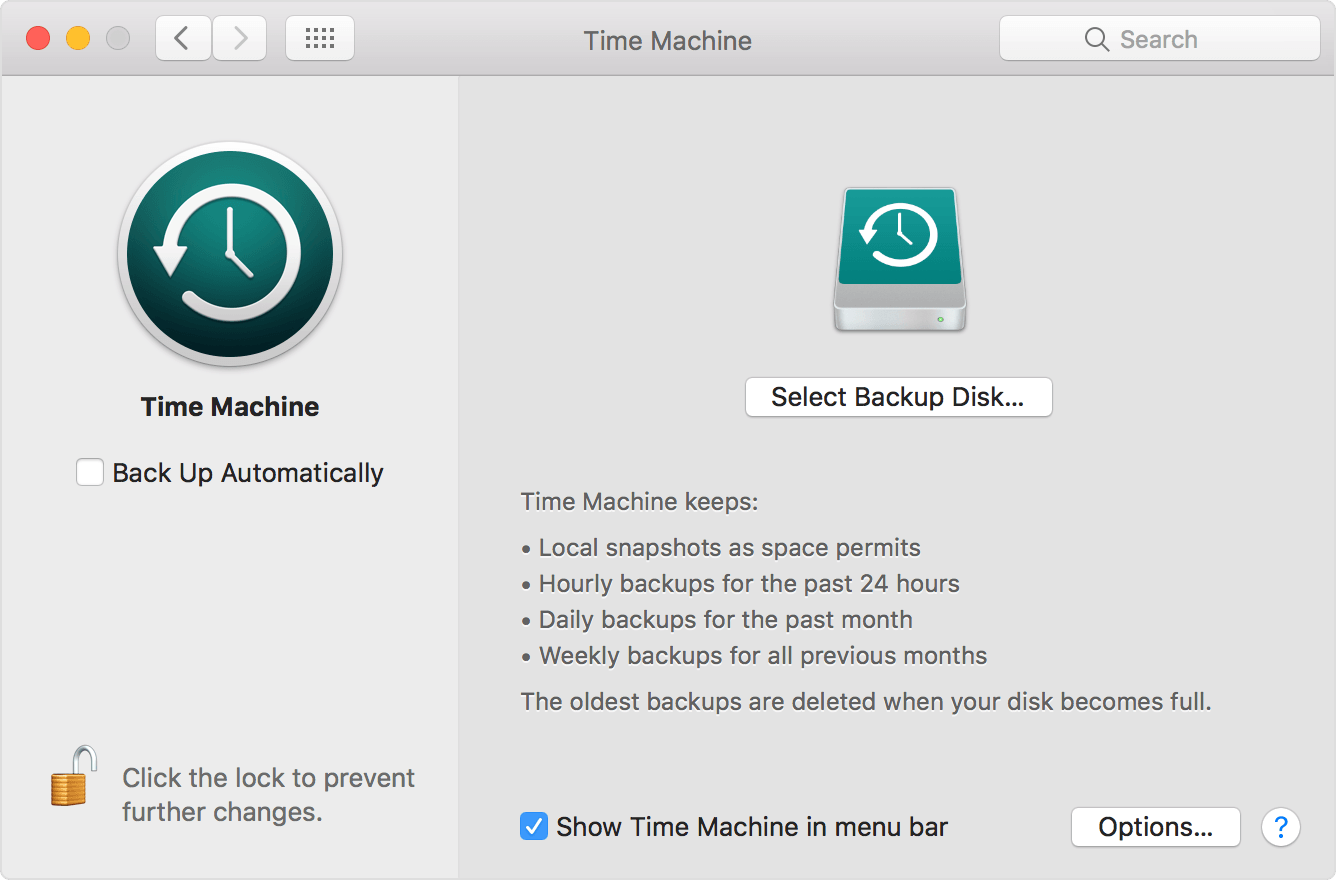
                                                             Image source:support.apple.com
For Macs:
1. Open Time Machine preferences from the Time Machine menu in the menu bar. Or choose Apple menu > System Preferences, then click Time Machine.
2. Click Select Backup Disk, Select Disk, or Add or Remove Backup Disk.
3. Select a backup disk from the list, then click Use Disk.
4. For additional backup security and convenience, you can repeat these steps to add another backup disk. For example, you might use one backup disk while at home, and another backup disk while at work.

Time Machine will start to back up your whole machine and will do regular backups for the past hour, 24 hours and month.

Image source:windows.net
For  Windows:
1. Right-click the Start button and launch Control Panel.
2. Click File History.
3. While in File History, click the System Image Backup link in the bottom-left corner of the screen.
4. Connect an external USB hard drive with enough free space.
5. In the backup wizard, you'll be prompted to choose from one of the three options to save the backup. For this example, we are going select the hard drive you just connected. However, keep in mind that you can backup to DVD blanks and a network share, but these options will slow down the backup process.
6. Click Next.
7. Confirm and begin the process by clicking Start backup.

The backup could take anywhere from 10 minutes to a couple of hours, depending on the amount of data and your computer’s processing power.

Hi there! James P. DeVellis here.  I’m a technophile working for a big IT company.  Visit my Google+ page for more IT stuff.