Wednesday, 30 August 2017

The best PC tune-up utilities of 2017

It’s 2017 and fast startup times and speedy operations should be a normal occurrence in almost all PCs. Well, at least on the brand-new ones. 

Image source: avg.com

We all want our PCs to run at peak capacity, regardless of whether it’s a budget laptop or a pro desktop. But inevitably, that out-of-the-box performance fades away. Every PC will eventually slow down; unless you’re properly maintaining it. That’s why there are many tune-up utilities available for PCs. 

So, what’s a tune-up utility? It’s a computer application that digs deep (with your permission, of course) into your computer and fixes trouble areas. It performs several functions from defragmenting your PC’s hard drive to repairing Windows Registry to freeing up disk space by deleting useless duplicate files and caches. 

Here are two of the best PC tune-up utilities of 2017: 

Lolo System Mechanic: At $49.99 the Lolo System mechanic may be one of the most expensive PC utilities out there, but it has all the tools you need to get your PC performing like new again. 

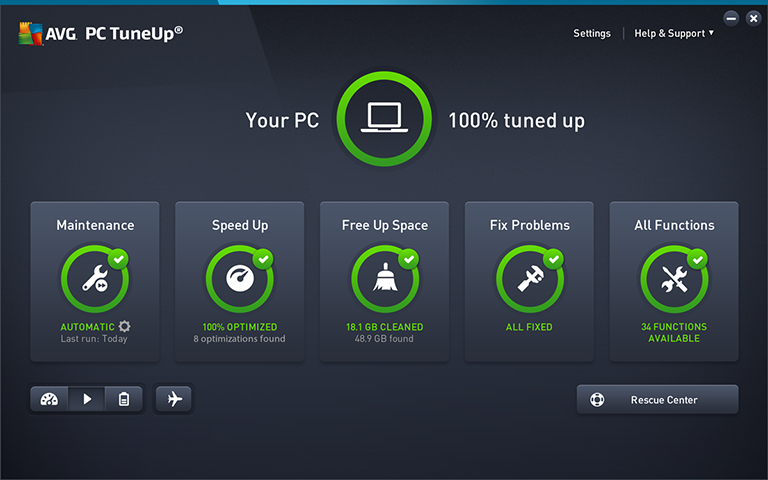
AVG Tune-up: AVG is one of the leading anti-virus companies in the world. So, it’s only fitting that it has one of the best PC Tune-up utilities available. What’s better is it now offers unlimited licenses. Preferable for those with many PCs to maintain. 

Image source : pcmag.com

My name is James P. DeVellis, a certified technophile. Subscribe to my blog for more tech-related discussions.

Sunday, 30 July 2017

Our favorite era defining mobile phones

Countless mobile phones have come and gone, but a chosen few have stayed in our hearts and minds out of fondness and nostalgia. Probably because we’ve gone through the best and worst of times with these phones at our side, or maybe because we’ve been amazed by what they were capable of – for whatever the reason, these phones have been a huge part of history. Here are some of the most iconic mobile phones ever. 

Image source: huffingtonpost.com
Motorola RAZR V8 Motorola (arguably) owes its success to the RAZR V8. This pioneer of slim phones turned out to be a consumer-favorite. It was a cinch to take along, and as a testament to its iconic status, the company has made money off phones with its design for years. 

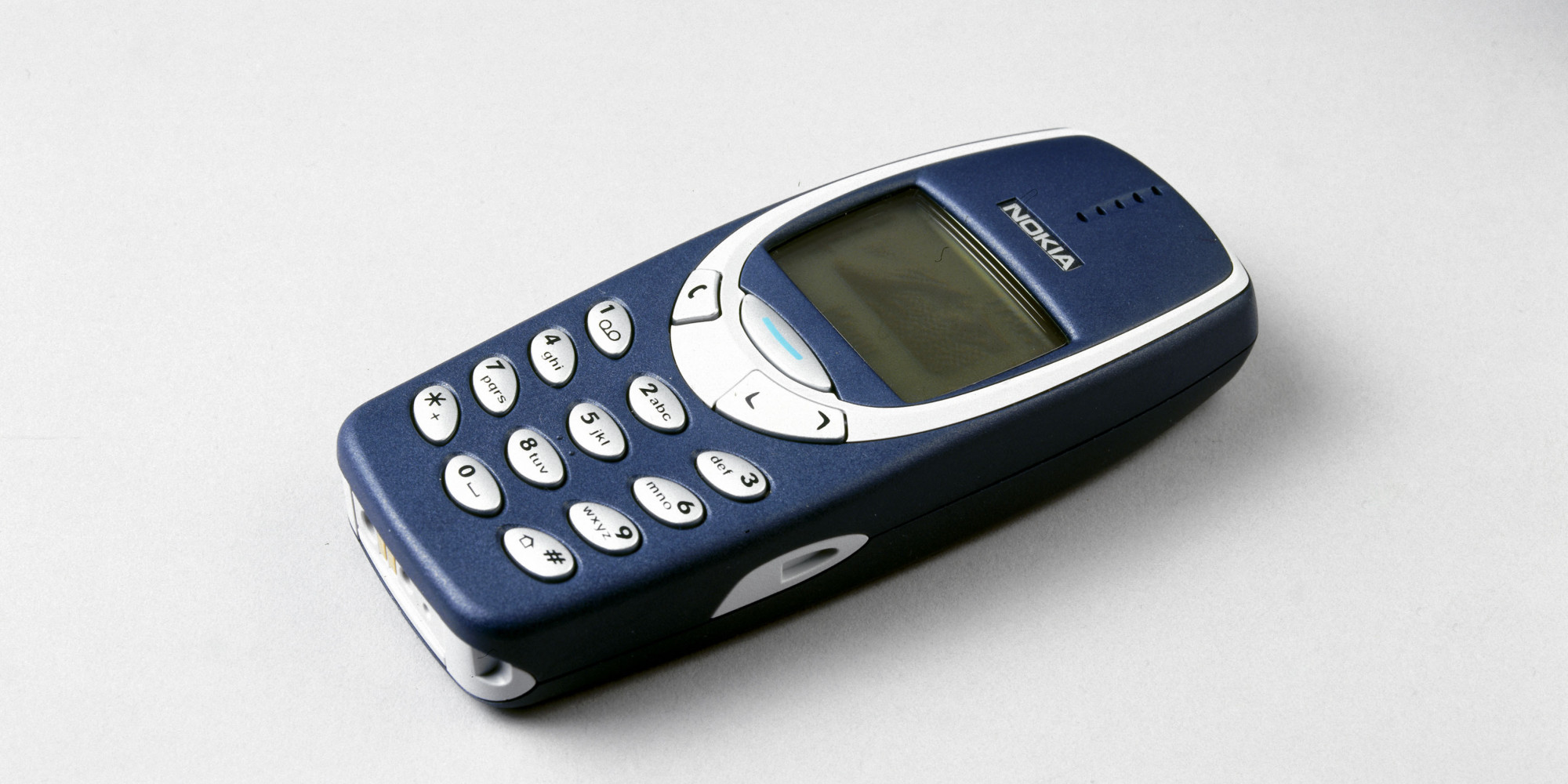
Nokia 3310 Who didn’t own a Nokia 3310 and think it was cool? The 3310 is one of those products that was impossible to hate. The only criticism about it was that some people considered its bulkiness tacky. But again, that’s part of its appeal – kind of like a bulldog. It not pretty to look at, but it get your heart. Also, it’s tough as Thor’s hammer. 

Apple iPhone 3G Though iPhones were never a bust, it was the 3G model that captured people’s attention on a global scale. It made iPhones user-friendly, and revolutionized smart phones by bringing in apps through the App Store. 

Image source: everyjoe.com
Hello! I’m James P. DeVellis. I love talking and writing about the latest technology. Subscribe to this Facebook to get more IT tips and advice.

Thursday, 15 June 2017

How To Back Up Your Computer Files Before It’s Too Late

In today’s digital world, almost everything we do, we do in front of the screen. So, there’s no such thing too many backups.  If you can make a backup of your backup, do it.  Fortunately, operating systems today provide easy ways to make a backup.  Below are steps on how you can do a backup if you’re using a Mac or a Windows PC.  (Note that for both systems, you’ll need a dedicated external hard drive to perform the task.)

                                                             Image source:support.apple.com
For Macs:
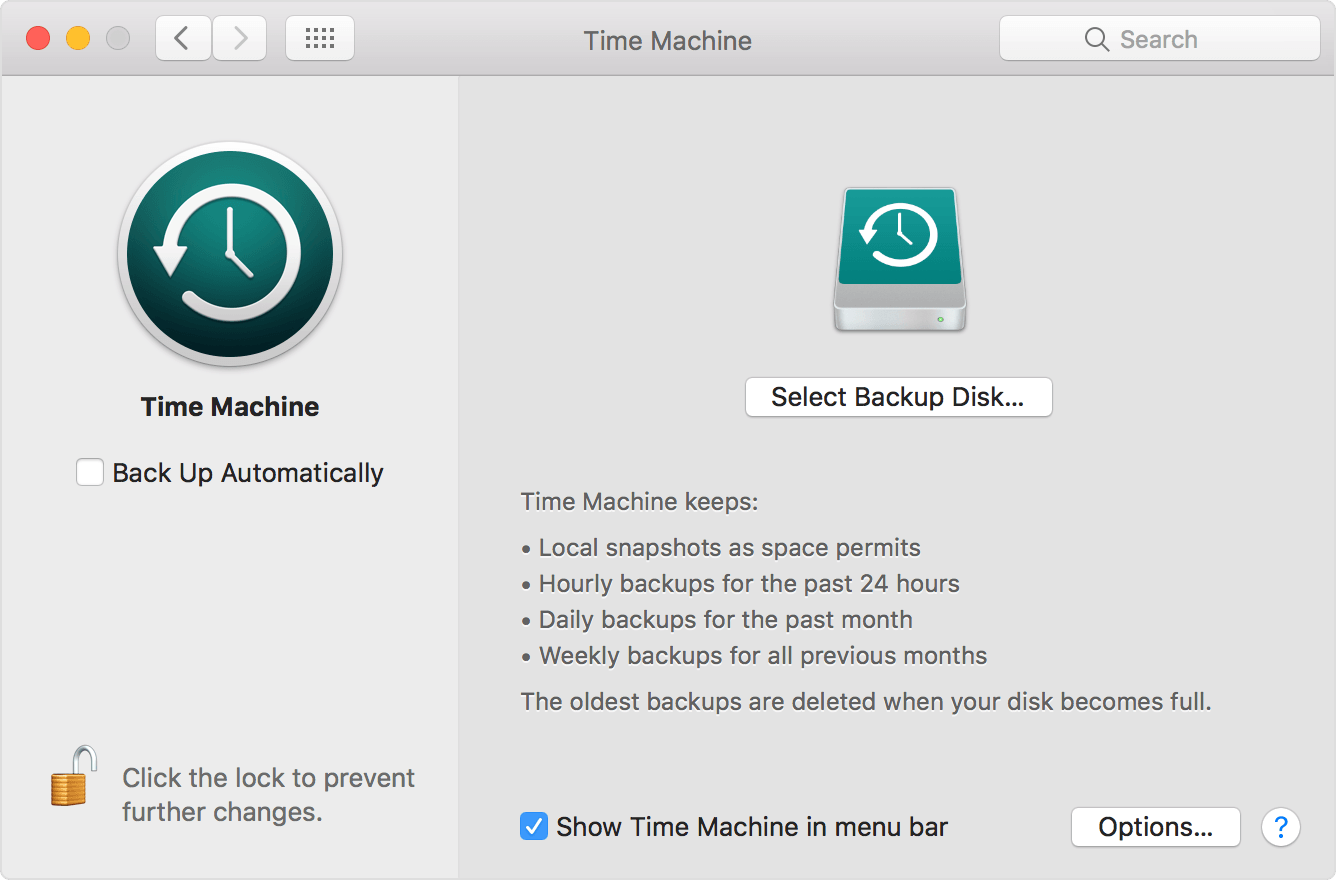
1. Open Time Machine preferences from the Time Machine menu in the menu bar. Or choose Apple menu > System Preferences, then click Time Machine.
2. Click Select Backup Disk, Select Disk, or Add or Remove Backup Disk.
3. Select a backup disk from the list, then click Use Disk.
4. For additional backup security and convenience, you can repeat these steps to add another backup disk. For example, you might use one backup disk while at home, and another backup disk while at work.

Time Machine will start to back up your whole machine and will do regular backups for the past hour, 24 hours and month.

Image source:windows.net
For  Windows:
1. Right-click the Start button and launch Control Panel.
2. Click File History.
3. While in File History, click the System Image Backup link in the bottom-left corner of the screen.
4. Connect an external USB hard drive with enough free space.
5. In the backup wizard, you'll be prompted to choose from one of the three options to save the backup. For this example, we are going select the hard drive you just connected. However, keep in mind that you can backup to DVD blanks and a network share, but these options will slow down the backup process.
6. Click Next.
7. Confirm and begin the process by clicking Start backup.

The backup could take anywhere from 10 minutes to a couple of hours, depending on the amount of data and your computer’s processing power.

Hi there! James P. DeVellis here.  I’m a technophile working for a big IT company.  Visit my Google+ page for more IT stuff.